Figma design file available at : https://www.figma.com/design/VkWHgf14qgWScHtgv3j3IU/LF—companion-app?node-id=0-1&t=KxL0UoNo7FlzJz5a-1
Home page
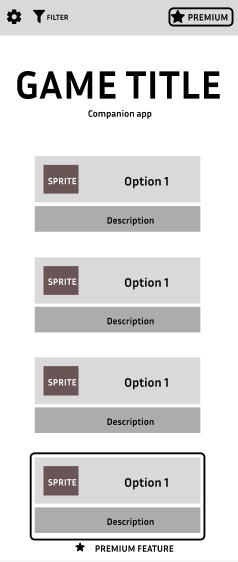
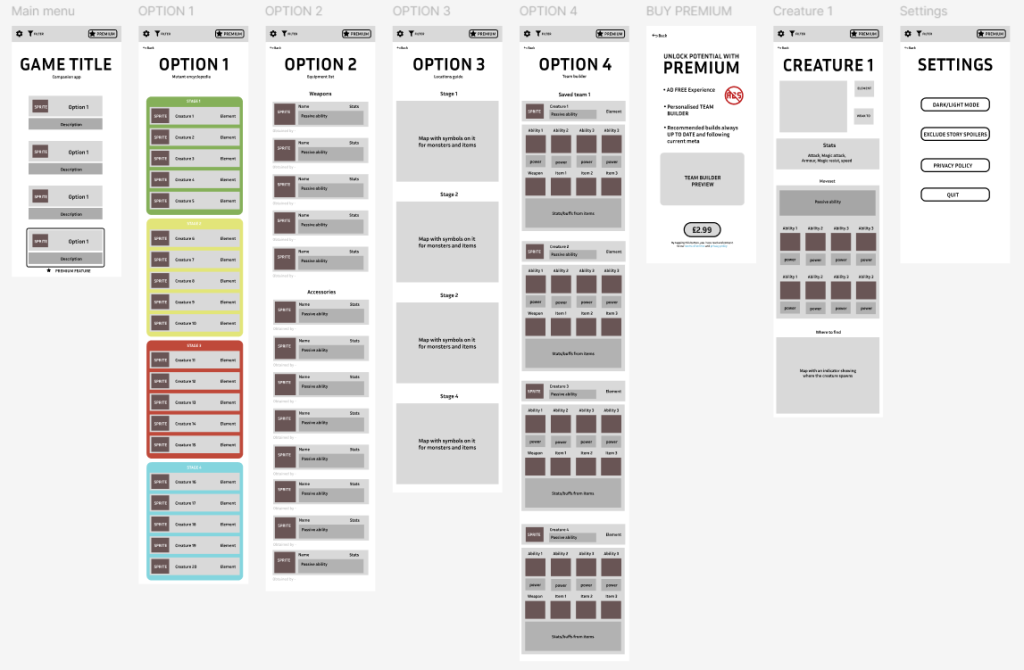
In order to start figuring out the compositional aspects of the app, I have created an 8 page long low fidelity prototype. The main menu is structured in a way which does not obstruct any of the 4 options from the beginning so you do not have to scroll. This makes it easier for potential users to identify the features of the app quicker especially ones that they would favour the most. The bar at the top has options relating to the app and user experience rather than the game itself, featuring things like the ability to buy a premium feature and the settings menu.
Settings
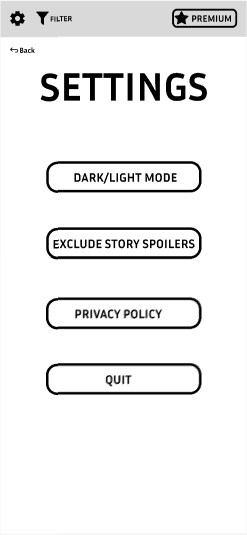
Tapping the cog icon in the top left corner of the home page, the user will be redirected to the settings menu. This menu includes a variety options to improve user experience. Tapping on the back button will always return the user back to the home page. The back option is never obstructed and remains in the same position throughout the entire app in order to make it easier to see and remember.
Option 1 – Mutant journal
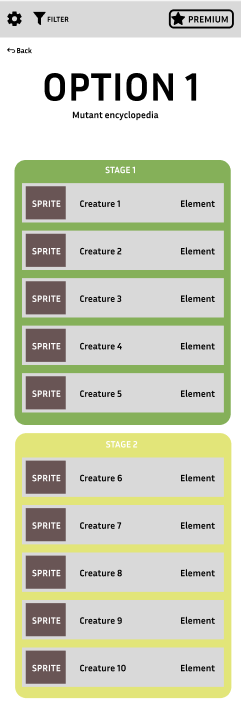
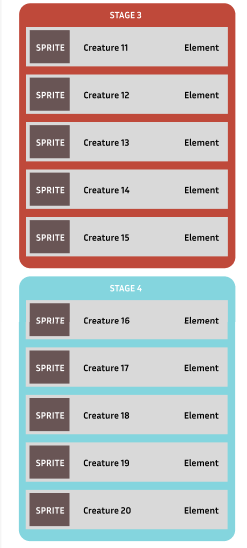
By tapping option 1 on the home page, you will be redirected to the mutant journal. This has been ruled to be a practical addition to the app because it will allow users to find out which mutants they are missing, where to find them, and their elements. Every mutant is separated by the stage they are found in and every stage is colour coded to convey the main element of that environment. This also teaches users the progression order, since stages 1-4 are labelled as such in order to convey their proper chronological order.
Option 1 – Individual mutants
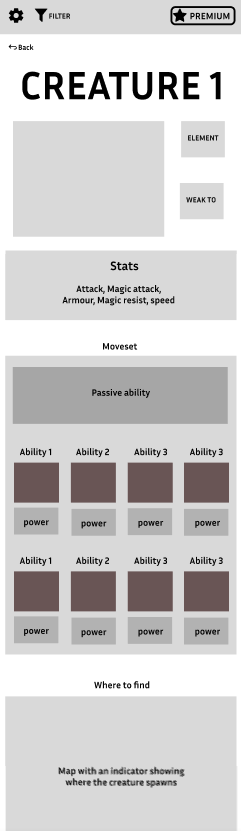
Tapping on the desired mutant in the journal will redirect the user to the page of the specific mutant they tapped on which will show them extra information about the creature. This has been modelled after the binding of isaac companion app as well as the official wiki of monster sanctuary. The page is structured in a way which shows the important and the must-know aspects at the top, and gradually moves down towards the slightly less relevant/situational information.
Option 2 – Weapons and accessories
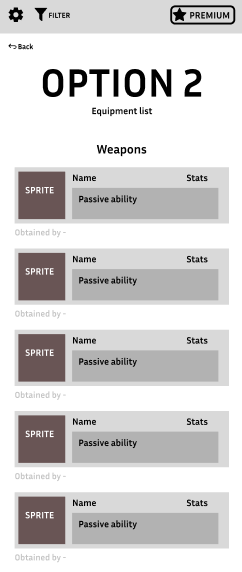
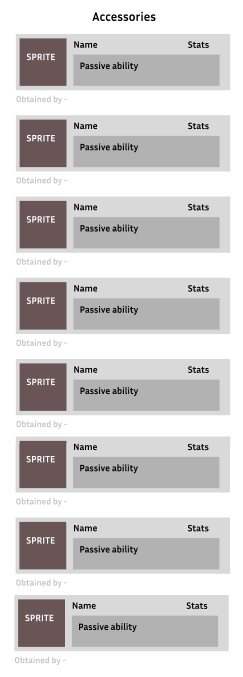
Tapping on option 2 on the home page will redirect the users to the weapons and accessories page. The page is structures into 2 categories, weapons and accessories since they are 2 different classes of equipment. This separation will help the users quicker identify what they are looking for by looking for the item in their respected category.
Option 3 – Map
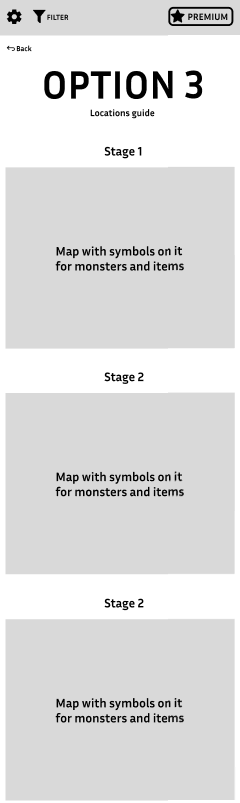
Tapping on option 3 will redirect you to the map, it features 4 separate parts of the complete map (categorised by stages) which will include any note worthy items, cosmetics or mutants in those areas. This has been a highly demanded feature due to how many users have previously experienced issues with finding certain items and consider it too tedious to spend time on it themselves.
Premium feature
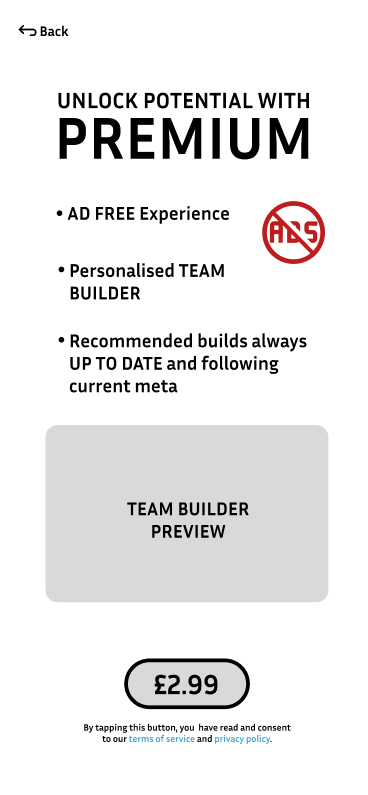
Tapping on the premium button or the option 4 button will redirect you to the premium page. This will allow the user to purchase a premium version of the app, the page is very direct with the transaction and tells you exactly what you will receive upon purchase. The price is in a big font which avoids confusion and helps people who might have dyslexia or poor eyesight. The team builder preview is the biggest asset on the screen due to the fact that it is by far the most important feature that premium provides. The app also conveys to the user that their safety is still a priority by encouraging the users to read the terms of service and privacy policy before purchase.
Option 4 – Team builder
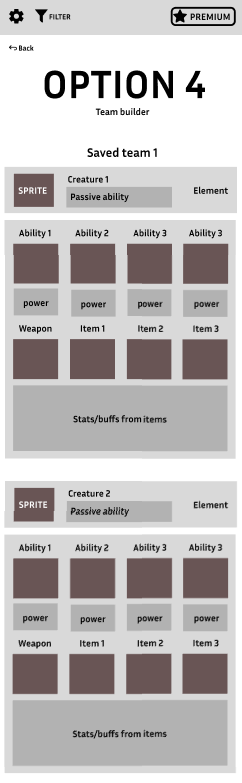
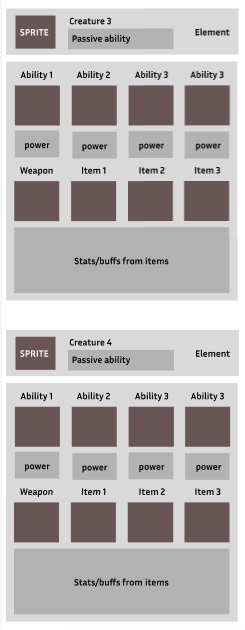
Tapping on the buy option will redirect you to the team builder. It will allow you to make a team consisting of 4 monsters, you can make more than 1 team at a time and can cycle between them if you save your previous builds. The hierarchy has a purpose, the build always features the mutants and their must-know features (like element and passive ability) at the top, so you can chose which mutants fit your builds best based on the guaranteed features. The visuals of the abilities is placed in the middle between the name and the power, this way the smaller text/assets don’t get mixed up and avoid overwhelming the canvas, especially when condensed closely with the items UI. And finally the final “stats/buffs” are at the very bottom to serve as a “conclusion” as to what kind of end result you will have by using this build.